
For the past several weeks, I’ve been reviewing SSIS Workflow tasks. Today, I want to take a detour and consider how you can handle file system operations, such as copying files. While you could use the Execute Process task to run a batch file that performs file system operations, there’s also a SSIS task for that.
Background:
The SSIS File System task is a straight forward task that lets you perform several, common file system operations directly in your workflow.
The types of supported operations are as follows:
Operation Description Requires Source Requires Destination Special PropertiesCopy directory Copies a directory from one location to another X X
Copy file Copies a file from location to another X X
Create directory Creates a folder in the specified location X XDelete directory Deletes a folder in a specified location X
Delete directory content Deletes a folder and all of its contents X
Delete file Deletes a file at a specified location X
Move directory Moves a directory form one location to another X X
Move file Moves a file one location to another X X
Rename file Renames a file at a specified location X X
Set attributes Sets attributes on files and folders. X X
In this post’s examples, I will walk through the properties for all the operation types, including the special properties that are unique to the Create directory and Set attributes operations.
Using BIDS:
To get started with the File System task, first find it in the Toolbox tool window.
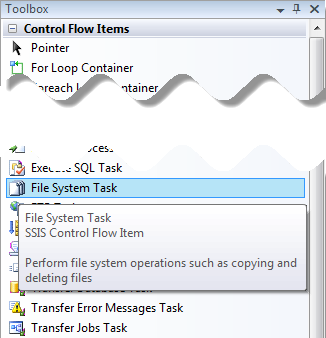
Next, drag and drop the task onto the package’s design surface.
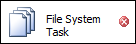
The red X icon in the task indicates that there are errors. Consulting the error list, you’ll see the following:

From the errors, it’s clear that the task’s default operation is to copy a file. Naturally, the task expects valid source and destination paths to perform the copy.
Double clicking on the File System task brings up its properties dialog.
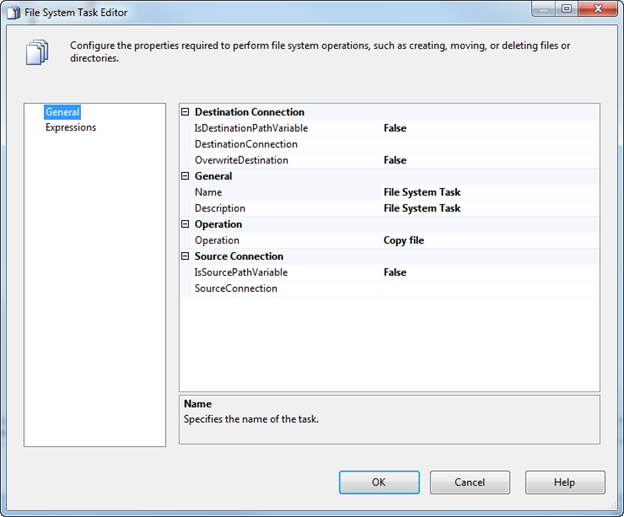
If you click inside the Operation field, you’ll see a down arrow appear to the right of Copy File. Clicking on the arrow will list all the operation types you can choose from.
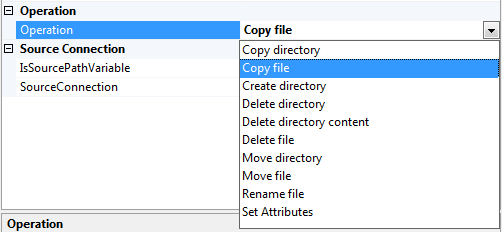
One thing in common with all of these operations is that they all require a source connection. The source connection is the file or folder that’s being changed. In this case, it’s the file being copied. For a delete file operation, it’d be the file being deleted.
The dialog’s Source Connection group lists two properties: IsSourcePathVariable and SourceConnection.

The IsSourcePathVariable is a boolean value that tells the task whether the source file path can be found in a variable or file connection. If you use the property’s dropdown to set the property to true, you’ll see that the SourceConnection property is renamed to the SourceVariable property in the dialog.
For this example, I am going to stick with a connection. If you select the SourceConnection property, you’ll see a down arrow button. Click on it to open a dropdown that lists any existing file connections along with the option to make a new connection.

Since no file connections currently exist, click on to create one in the File Connection Manager editor.
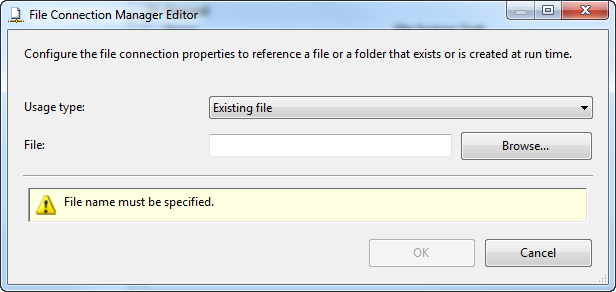
This editor allows you to reference an existing file or folder. Since this task is performing a copy file operation, using Existing file makes sense. In the File text field, you can enter the absolute path to the file you want to copy. You can also press the Browse button to display a Select File dialog.
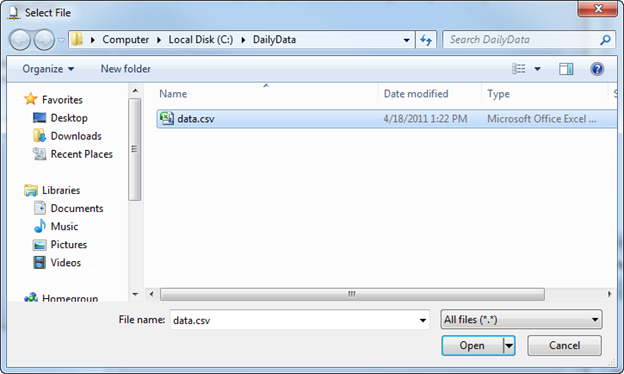
You can navigate to the file and press Open. The path to the file is then added in the dialog for you.
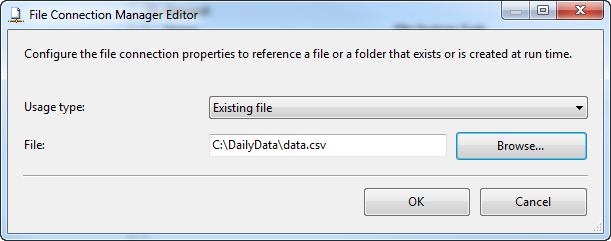
Once you’ve selected your path, you can press OK to dismiss the dialog.
When using the copy file operation, you also need to specify where the file will be copied to. The properties in the dialog’s Destination Connection group let you set that up.

Similar to the Source Connection group, the Destination Connection group has a IsDestinationPathVariable property and a DestinationConnection property. The IsDestinationPathVariable property lets you specify a variable that holds the destination path. The third property, OverwriteDestination, is another boolean property. Setting it to true causes the task to forcibly place the item you’re copying at the specified path, even if another file or folder is already there.
For the destination, try setting IsDestinationPathVariable to true.

You’ll see that the DestinationConnection property becomes DestinationVariable. If you select the DestinationVariable property, you’ll see a down arrow button. Click on it to open a dropdown that lists any existing variables along with the option to make a new one.

You can click on New variable… to create a new variable. When you do this, the Add Variable dialog will appear.
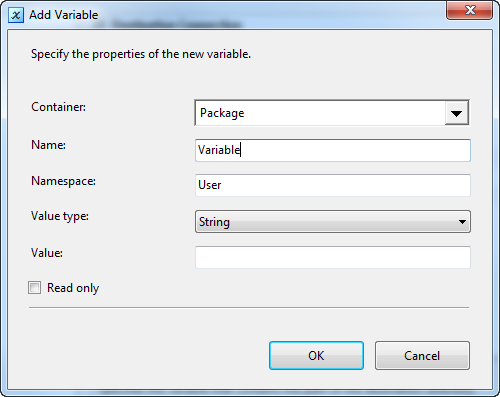
You can keep most of the defaults. However, I do recommend changing the name to something more helpful. Additionally, you must enter a directory path, where the file will be copied to, in the Value textbox.
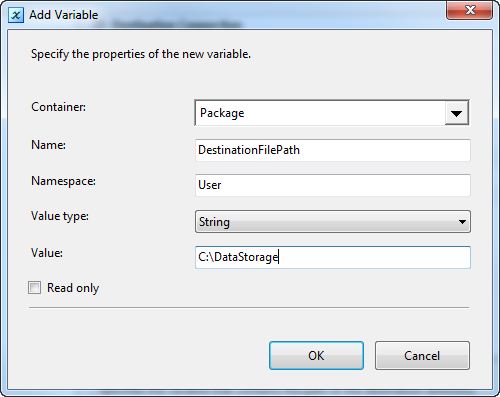
Notice that there’s unfortunately no Browse button to help you find your file. Once you’re done, press OK to dismiss the dialog.
With that done, you’re ready to actually copy a file.
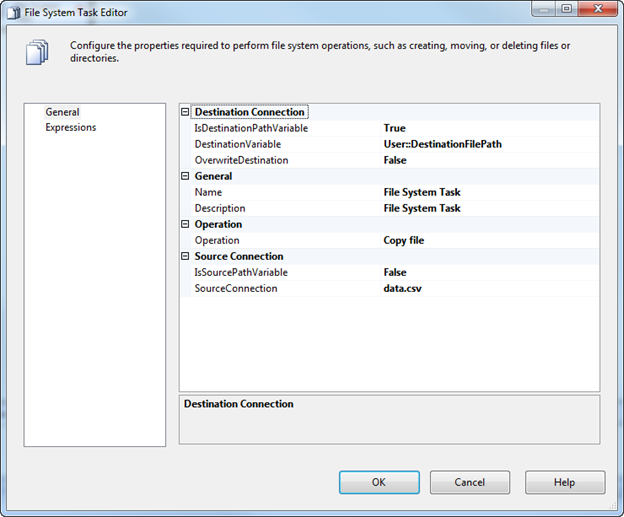
If you try to run the task in BIDS, you’ll see that the file is indeed copied from C:DailyDatadata.csv to C:DataStoragedata.csv.
As aforementioned, all of the File System task’s operations require a source and half of them need a destination. The two operations with some variation are Create directory and Set Attributes.
Create directory has a unique property - UseDirectoryIfExists. This property handles the scenario where you attempt to create a directory at a path where a directory already exists. If the property is set to true, the directory that already exists will remain, as if it had been created.

Set Attributes lets you set four attributes on files or folders in the file system.

File attributes are metadata values that are used by the operating system. The attributes you can set are:
Property DescriptionHidden The file or directory cannot be seen in a directory listing.ReadOnly Applications can read the file, but not write to it or delete it. This attribute is ignored for directories.Archive Typically indicates that a file or folder is used for backup or removal.System A file or directory used by the operating system.
Using Mist:
Now, let’s see how to do the above in Mist.
To start, you’ll need to create a package. If you’re unfamiliar with how to create a package, you can follow the first couple steps in the Mist User Guide’s Creating a Package topic.
Once your package is open, navigate to the Toolbox tool window.
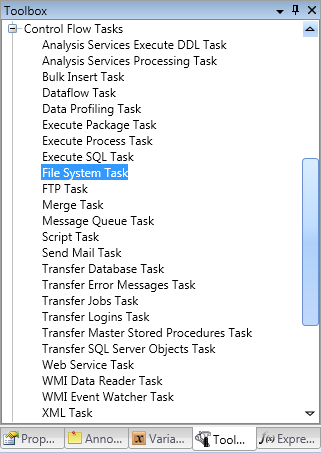
Select and then drag the File System task onto the Package’s design surface.
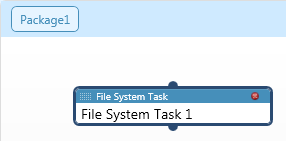
The task has a red X icon, just like in BIDS, since it has errors.
Inside the Package Details tool window, located below the package designer, you’ll be able to edit the File System task’s properties.
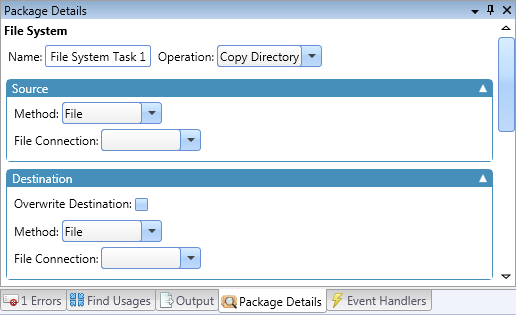
For the Copy File operation, there are Source and Destination groups, similar to the BIDS dialog. The Source method default is a File connection. However, if you click on the File Connection dropdown, you’ll see that it only contains a value for (No Selection). Thus, you’ll need to create a connection. You can follow the steps in the Mist User Guide’s Create New Connection section to create a connection, although you’ll want to make a File connection instead of an Ole Db connection.
The designer for the File connection has one red bordered field, clearly indicating that you need to provide a file path.
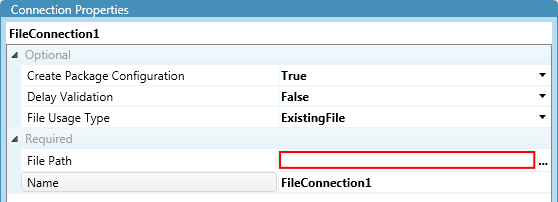
Clicking on the ellipses button, to the right of the red border, displays an Open File dialog to help you find your file.
Matching the BIDS sample, provide an appropriate file path for your file connection. Also, feel free to rename this connection so it’s easy to identify, and to make it easy to use elsewhere.
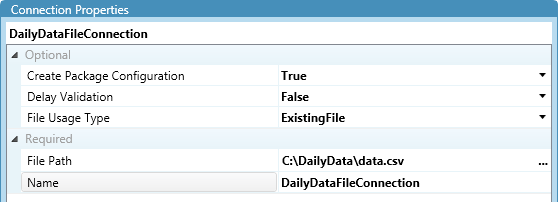
Now, reopen the package and select the File System task to view its details again. In the Source group’s File Connection combo box, you can now select DailyDataFileConnection.
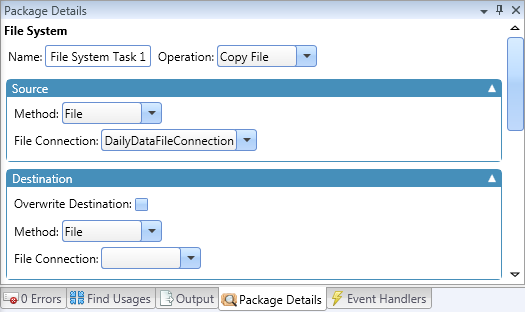
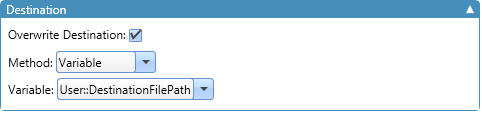
In the Destination group, to match the BIDS sample, you’ll need to assign a variable that contains the destination path. To do that, go to the Method dropdown and select Variable.
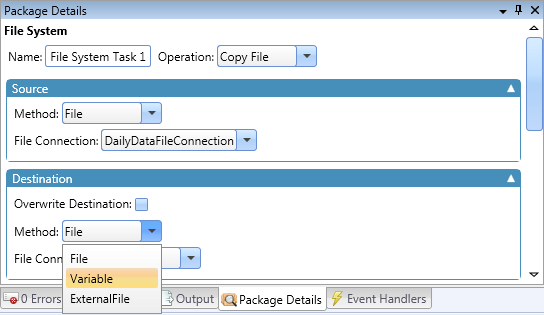
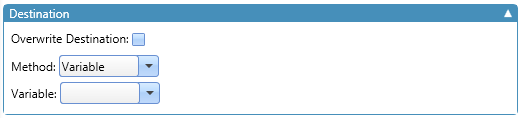
Once you select Variable, the Destination group UI changes to provide a Variable dropdown.
If you open the dropdown, you’ll see all the System variables that already exist. To create a new one, click in the designer’s white background area to re-select the Package. Then, in the ribbon, click on the Variable button.
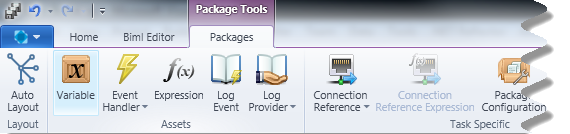
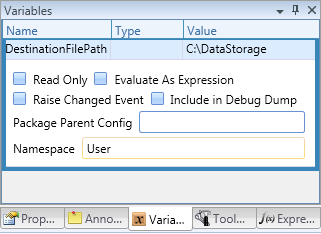
This adds a Variable to the package. When you press the Variable button, the Variables tool window comes to the front and the new variable is selected.
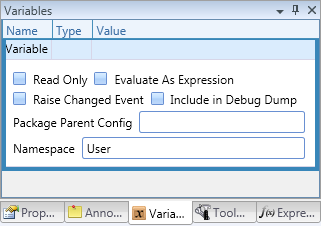
To match the BIDS sample, double click in the variable’s Value cell and enter the folder path. You can also double click in the variable’s Name cell to change its name.
Next, reopen the package and select the File System task to view its details. In the Destination group, you can now select your variable from the Variable dropdown. Also, you can check the Overwrite Destination check box to enable that capability.
If you switch the Operation to Set Attributes, via the Operation combo box, you’ll see an Attributes group with four checkboxes.
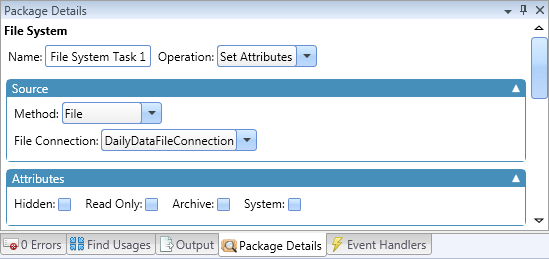
Similar to the BIDS dialog, you can check or uncheck each of these to control which attributes to set.
Next Time:
One important limitation for this task is that it only operates on a single file or directory. Thus, if you want to perform file operations using a path with wildcards, such as C:Logs2009*.csv, this task can’t help you. Next time, I’ll demonstrate how to overcome this deficiency.
Links:
File System documentation for the BIML language
File System task - MSDN
File Attributes - MSDN
Craig